SHAREPOINT

Adding custom formatting to all list views

Adding custom formatting to all list views

One of the most exciting changes to SharePoint in the last few years is the advances in custom formatting of columns, views, and forms. These capabilities have transformed lists from functional tools that are pretty boring to exciting, dynamic, visual presentations of data with colors, icons, and almost anything you can design in HTML/CSS. By default, most of the custom formatting samples for columns are shown in a single view, but it is just few steps to make this formatting active in every view.

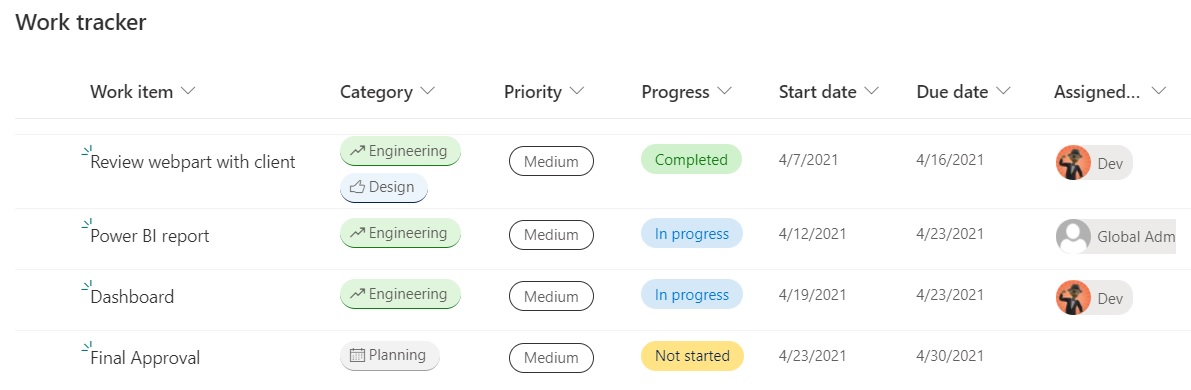
First, let’s find out how to create some custom formatting. I started with a Work Tracker list from the templates provided in Microsoft Lists and added some data about a project. As you can see from the image below, this template already has custom formatting in several columns. (Category, Priority, Progress, and Assigned to).

Microsoft Certified Trainer for 2021

Microsoft Certified Trainer for 2021

As 2020 ends (finally!), I realized that I neglected to post about an acheivement that I am very proud of. Last month, I was confirmed as a Microsoft Certified Trainer (MCT) for 2021. This is my 5th MCT certification and I even received a nice polo shirt for the 5-year acheivement. I am very proud to be counted among professional instructors in Microsoft technologies and look forward to more opportunities to use my certification help educate others.

Creating a Section Aware webpart in SPFx

Creating a Section Aware webpart in SPFx

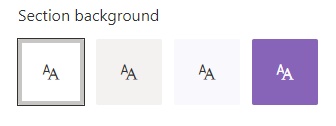
Recently, I built a web part for a client, which led to a discussion about why the web part background was static white, which did not reflect the branding on the page. My quick fix was to just change the color manually, but now I wanted to know more about how I could build webparts that are aware of the area that they are in. It turns out, there are several options, depending on the capabilities needed and the web part framework.

SharePoint Devs be aware! DOM changes are happening!

SharePoint Devs be aware! DOM changes are happening!

Microsoft warned us! The Document Object Model (DOM) on web pages was a common target in my pre-SPFx solutions, especially the ones that used jQuery. When SPFx came along, Microsoft was very clear that the classes and element ids on the modern page were not an API. By that, they meant that there was no contract with developers that those values would not change in the future. The future is here!

Acknowledging Microsoft’s warning, I vowed to stay in the box and not rely on any classes that were not included as part of my solution. Other than “fixing” the workbench to behave like an actual page in SharePoint, I went a long time before breaking my vow. I have a client that complained non-stop about the white-space between web parts on their intranet homepage. I calmly explained multiple times why Microsoft chose to design the modern page with this white-space, but they insisted that I needed to change it. Eventually, the “client is right” mantra won, so I built a web part that would allow the client to adjust the horizontal and vertical spacing between web parts. Again, I warned them that one day the page might just disappear. Happy client == happy paycheck!

As soon as I got the call about the white-space being back, I had a pretty good idea what happened. Sure enough, when I cracked open the Dev Tools of my favorite browser (Edge), it didn’t take long to find the issue. The two classes I used to adjust spacing were no longer there. There were new classes in their place that seem pretty cryptic, having what appears to be an identifier (partial GUID) as part of the class name. Those class names did not look like a stable place to be targeting at all. To Microsoft’s credit, they (mostly) took the old class names and moved them into an attribute called data-automation-id. Not only did this help track down what had changed, but gave me new targets to “fix” my broken web part for now.


SPFx 'gulp clean' - don't neglect its use during deployments

SPFx 'gulp clean' - don't neglect its use during deployments

I recently ran into a situation where building and debugging a SPFx web part seemed to go off the rails. Then I figured out that my normal pattern of skipping the ‘gulp clean’ command during project deployment had cause what I thought was bizarre behavior in Site Collection Features and toolbox.

I was working for a client that does not have a dedicated development or QA environment due primarily to political reasons. They also block access to all non-company tenants. Fortunately, I am able to do my development “off network” and once everything is ready, I move the code inside the firewall. Since this was an update to an existing web part, I knew deploying it to the same tenant as the existing web part was going to be tricky. The existing web part is on the company intranet home page, so getting into a site for testing without affecting the original web part meant deploying into a “QA” site app catalog. I thought this would work and there shouldn’t be any conflict. Famous last words …

Flicon: Find your Fluent UI icons in one simple place

Flicon: Find your Fluent UI icons in one simple place

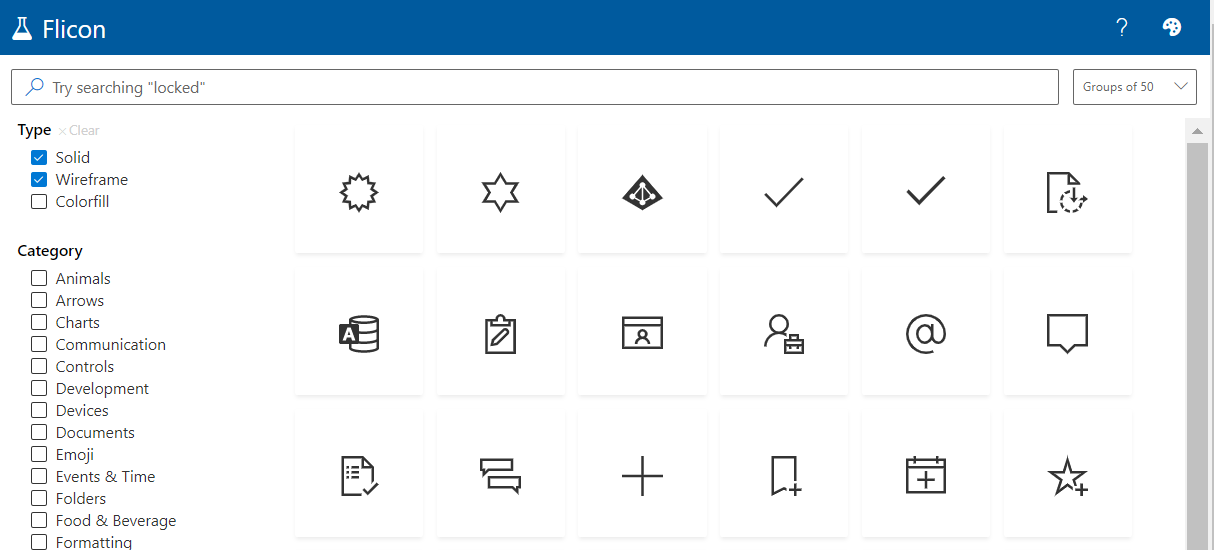
Have you ever found yourself looking for an icon, but not able to quite track down the perfect one? Between SPFx projects and the new modern list formatting capabilities in Microsoft 365, I am often looking for the icon to perfectly represent my idea. Until now, this process involved browsing through the Fluent UI website in hopes that I will stumble across one that works. Now there is a better way: Flicon.io

This new site is the brainchild of Chris Kent, Microsoft Office Development MVP and speaker extraordinaire. As a member of the Microsoft 365 PnP Core team, Chris spends a lot of time working on samples of List formatting, often using icons in those samples. I’m betting that he got tired of trying to find appropriate icons for his entertaining demos on the weekly “Sharing Is Caring” calls and decided to build a better solution. The problem with the current process is that you can only search for icons by name and often the name does not fit into the category of icon you are looking for.

Flicon.io is a tool that lets you search for icons based on categories and tags that have been associated with each icon instead of just the name. Let’s take a look at how that works.