


M365

SharePoint Devs be aware! DOM changes are happening!

SharePoint Devs be aware! DOM changes are happening!

Microsoft warned us! The Document Object Model (DOM) on web pages was a common target in my pre-SPFx solutions, especially the ones that used jQuery. When SPFx came along, Microsoft was very clear that the classes and element ids on the modern page were not an API. By that, they meant that there was no contract with developers that those values would not change in the future. The future is here!

Acknowledging Microsoft’s warning, I vowed to stay in the box and not rely on any classes that were not included as part of my solution. Other than “fixing” the workbench to behave like an actual page in SharePoint, I went a long time before breaking my vow. I have a client that complained non-stop about the white-space between web parts on their intranet homepage. I calmly explained multiple times why Microsoft chose to design the modern page with this white-space, but they insisted that I needed to change it. Eventually, the “client is right” mantra won, so I built a web part that would allow the client to adjust the horizontal and vertical spacing between web parts. Again, I warned them that one day the page might just disappear. Happy client == happy paycheck!

As soon as I got the call about the white-space being back, I had a pretty good idea what happened. Sure enough, when I cracked open the Dev Tools of my favorite browser (Edge), it didn’t take long to find the issue. The two classes I used to adjust spacing were no longer there. There were new classes in their place that seem pretty cryptic, having what appears to be an identifier (partial GUID) as part of the class name. Those class names did not look like a stable place to be targeting at all. To Microsoft’s credit, they (mostly) took the old class names and moved them into an attribute called data-automation-id. Not only did this help track down what had changed, but gave me new targets to “fix” my broken web part for now.
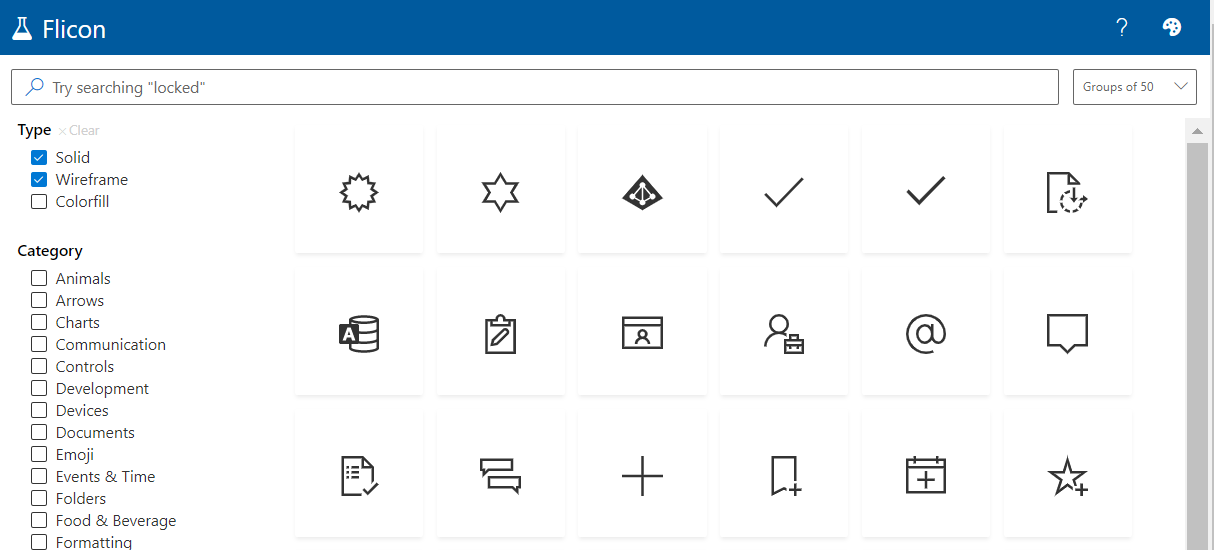

Flicon: Find your Fluent UI icons in one simple place

Flicon: Find your Fluent UI icons in one simple place

Have you ever found yourself looking for an icon, but not able to quite track down the perfect one? Between SPFx projects and the new modern list formatting capabilities in Microsoft 365, I am often looking for the icon to perfectly represent my idea. Until now, this process involved browsing through the Fluent UI website in hopes that I will stumble across one that works. Now there is a better way: Flicon.io

This new site is the brainchild of Chris Kent, Microsoft Office Development MVP and speaker extraordinaire. As a member of the Microsoft 365 PnP Core team, Chris spends a lot of time working on samples of List formatting, often using icons in those samples. I’m betting that he got tired of trying to find appropriate icons for his entertaining demos on the weekly “Sharing Is Caring” calls and decided to build a better solution. The problem with the current process is that you can only search for icons by name and often the name does not fit into the category of icon you are looking for.

Flicon.io is a tool that lets you search for icons based on categories and tags that have been associated with each icon instead of just the name. Let’s take a look at how that works.

Getting involved in the "Sharing is Caring" community

Getting involved in the "Sharing is Caring" community

Anyone that knows me, knows my passion for community. This comes from the appreciation of so many people that have helped me over the years on their own time and free of charge because of their own passion for community. While I have seen this behavior in other IT “communities,” the SharePoint community is a special group that loves sharing knowledge with others. (It is right in the name!)

I was introduced to this concept about 14 years ago in my local Dallas-Ft Worth SharePoint User Group (DFWSPUG then, now O365 Community). As a newbie, it was there I found experts in a technology I was desperately trying to learn and not only did they teach us during the meetings, they offered themselves up to be contacted anytime. And they meant it! I know because I called often. Some members were Microsoft employees. Others were MVPs or MCMs. Most of us were mere SharePoint users and developers that were just helping each other expand our knowledge of the platform so that we could help our companies or customers. There are too many to name here, but a special shoutout goes to Eric Shupps(@eshupps), Kirk Evans(/in/kaevans), Miguel Wood(/in/miguelwood), and Corey Roth(@coreyroth) for answering so many questions I had during those early days (and still do!)

Resetting Azure MFA Registration

Resetting Azure MFA Registration

Users occasionally lose access to their Multifactor Authentication (MFA) source, possibly by purchasing a new phone or changing phone numbers. When this happens, they are locked out of any resource that requires MFA. In these cases, they need to re-register for MFA with their new source.

Here are the steps to reset MFA registration for a user in Azure:

NOTE: to reset a user’s MFA registration, the account performing the following actions must be in the Authentication Admin or Global Admin role.